Change or Remove Campaign Information
If you have already set up a campaign and need to adjust the list of pledging participants, or even change the campaign name, use the Campaign Pledges tab of the View and Enter Pledges screen to make the change. Then, use the following instructions.
Note:
Reports, Labels, and Statements printed before you change any of the pledge information will become outdated once you change pledge information. Be aware that you might need to re-print Donation Statements and/or reports to reflect the changes after making them.
- Click Accounts & Pledges in the Button Bar at the top of the screen
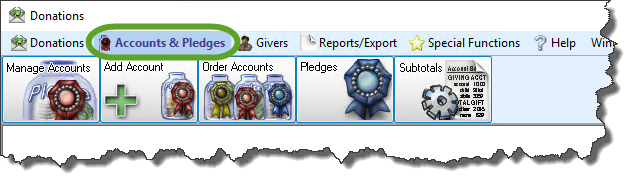
- From the menu options that appear underneath, click Pledges to enter the screen.

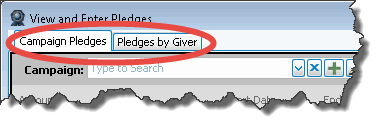
- Click the Campaign Pledges tab.
- Click the
 dropdown button of the Campaign box and select the desired name.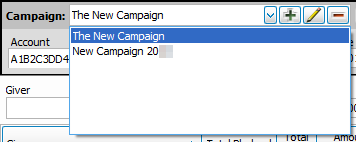
In the larger portion of the screen, you have the option to change pledge information for any individual or group. You can only change the Amount Per Frequency, Frequency, Start Date, End Date, and Use in Distrib? Pledge Information Fields. When you make the change, the other fields on the line will be affected according to the changes that you make. - If you have determined that you either want to change the name of the campaign to something else, or delete the campaign altogether, see the following options:
Change the Campaign Name
Click the
 Edit button and type the name to which you need to change the campaign. When finished, press the OK button.
Remove the Campaign
Click the
 Delete button. The following message will appear: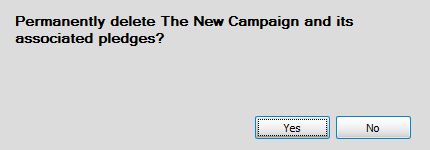
Click Yes to proceed with the deletion of the campaign. Otherwise, click No to have the software make no changes to the campaign.
